Start here if you are tuning FPS sensitivity
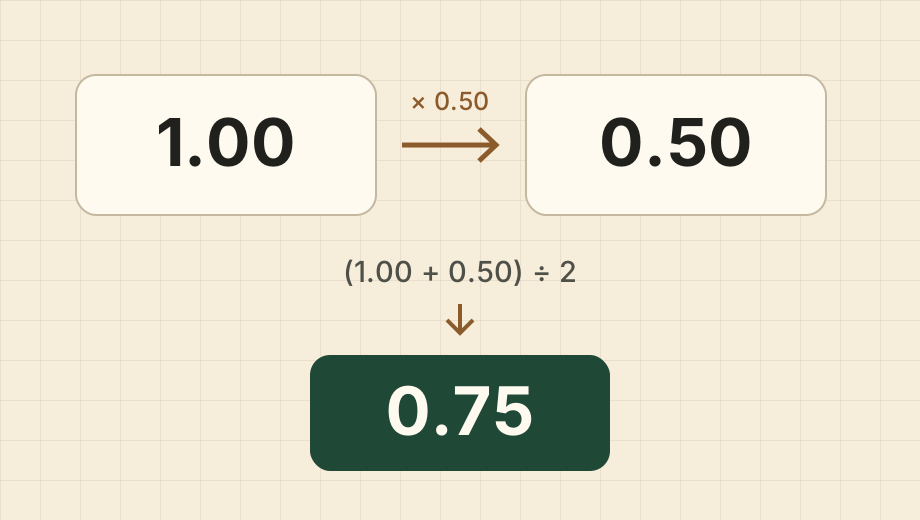
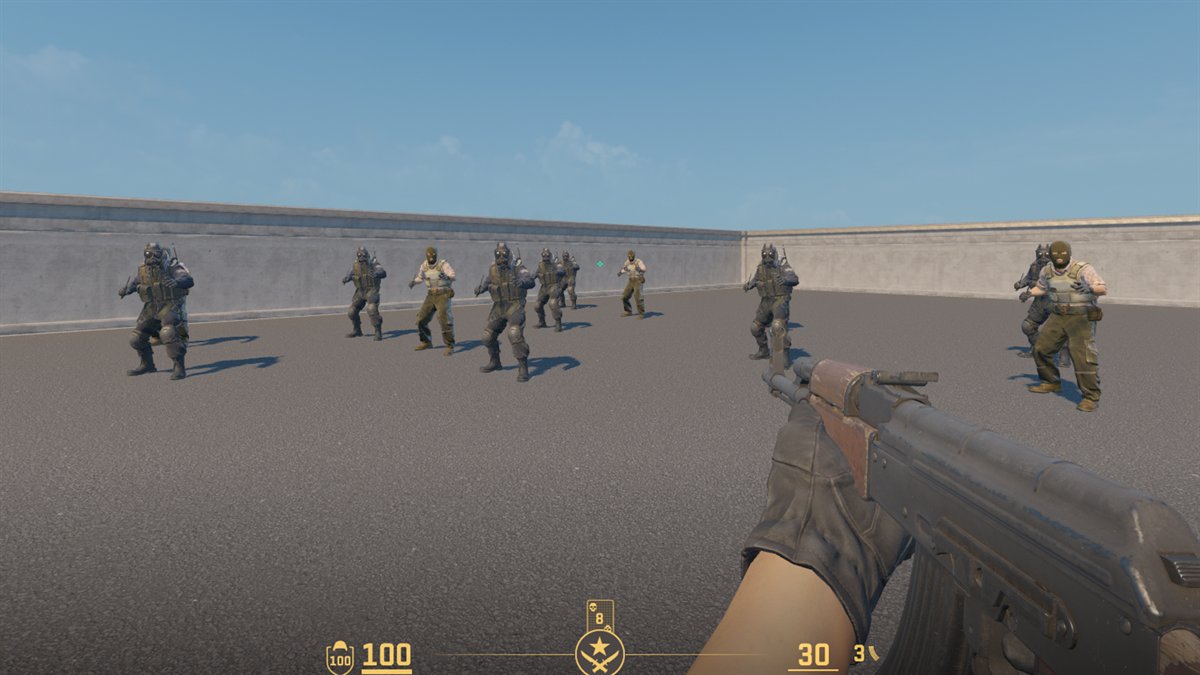
PSA Method is useful because it turns a vague feeling—“this is too fast” or “this is too slow”—into a repeatable comparison process. Instead of copying a professional player’s setup or changing sensitivity randomly after every missed shot, you begin with your current value, test a lower and a higher candidate, and choose the one that feels more controllable in the same practice environment.
These guides are written for players who want more context around the calculator: how to run the seven rounds, what to keep constant while testing, how to interpret CS2 pro data, and why eDPI, resolution, crosshair, and video settings should support your aiming style rather than replace real in-game validation.
Recommended reading path
- If this is your first visit, read the calculator tutorial first. It explains the Lower/Base/Higher workflow, shows a full seven-round example, and covers what to do with the final number.
- If you already know the PSA workflow, use the eDPI analysis to understand how professional CS2 sensitivity ranges can be used as a sanity check without blindly copying a player with a different desk space or grip.
- After your sensitivity feels stable, review the resolution, crosshair, and video settings articles. These settings do not replace sensitivity testing, but they affect target visibility, perceived speed, and how easy it is to keep your aim consistent across sessions.
How we treat pro settings data
The CS2 articles are not meant to declare one universal “best” setting. A 1280x960 stretched resolution, a compact static crosshair, or an eDPI near a common professional range can be useful information, but the practical question is whether the setting helps you aim, track, clear angles, and correct mistakes in your own matches. Each analysis focuses on patterns, trade-offs, and ways to apply the data responsibly.
What to keep constant during a PSA test
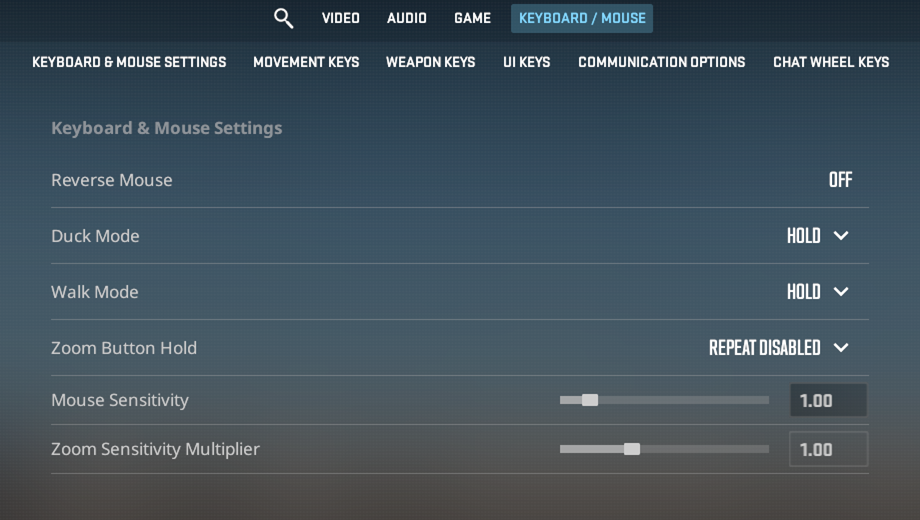
For cleaner results, keep DPI, polling rate, Windows pointer speed, mousepad space, resolution, and practice map consistent during a test. Try both candidate sensitivities in the same drill before clicking a choice in the calculator. If you switch games, change DPI, or move to a new mousepad, rerun the process instead of assuming the old value still represents your current setup.
Choose a guide by the problem you want to solve
When two PSA runs disagree
A different final number does not automatically mean that the calculator is broken. Your choices may change because you warmed up, tested one candidate for longer, changed the drill, or became tired. Write down the conditions of both sessions and identify the first round where your preference changed. Repeat that comparison with equal practice time and reversed order. The troubleshooting guide explains how to preserve a baseline and avoid combining incompatible sessions.
When a new mouse or DPI profile feels wrong
Start by checking the active hardware profile and restoring a known in-game value. In the same game, DPI multiplied by sensitivity gives eDPI; doubling DPI and halving sensitivity keeps that product constant. Treat this as a starting calculation and verify the physical distance needed to turn. Do not use equal eDPI as proof that different games, scoped modes, or input systems must feel identical. Keep a note of both the old and new setup so you can undo the experiment.
When aiming looks faster after a display change
Resolution and aspect ratio can change your visual reference. Before changing sensitivity again, compare the display setting while keeping the mouse setup fixed. Look at target visibility, comfortable scanning, and whether you can still make small corrections. The resolution guide discusses trade-offs; the crosshair guide helps you compare visibility without treating a professional player’s preference as a requirement. A useful change should address a problem you can describe, rather than simply resemble a screenshot.
When you are unsure what to record
Record the date, game, DPI, base sensitivity, candidate values, drill, and one concrete observation for each candidate. “Needed two corrections on distant targets” is more useful than “felt weird.” Note interruptions or frame drops. If you use scores, keep the unsuccessful attempts too. Review consistency across comparable blocks instead of selecting only a personal best. Our new guide includes an illustrative log that you can copy into your own notes; its example observations are not research data.
When more testing is no longer helping
You do not need a fresh sensitivity after every match. If your large turns fit the pad and your small corrections are comfortable, keep the setting for normal practice and examine other causes of missed shots. Review movement, pre-aim, timing, and target choice. Take a break when fatigue affects every candidate. A browser reaction test can be interesting, but it measures a separate task and should not be used to approve or reject a mouse sensitivity.
How to check our sources and suggest a correction
The pro-settings series describes a historical May 2026 sample, not a live professional leaderboard. Each article now links to a fixed source report and aggregate, explains field-specific denominators, and distinguishes source-reported details from independently checkable summaries. Read that scope before applying percentages to your own play. If you find a mismatch, send the article URL, the specific claim, the source version, and your calculation through Contact. Never include account credentials or private player information.